Inside of a Dedupe datasets, Matched Groups will identify the discovered duplicate records. Each Matched Group will have a corresponding confidence level indicating the likelihood that the matched records are duplicates; along with the quantity of records inside the group.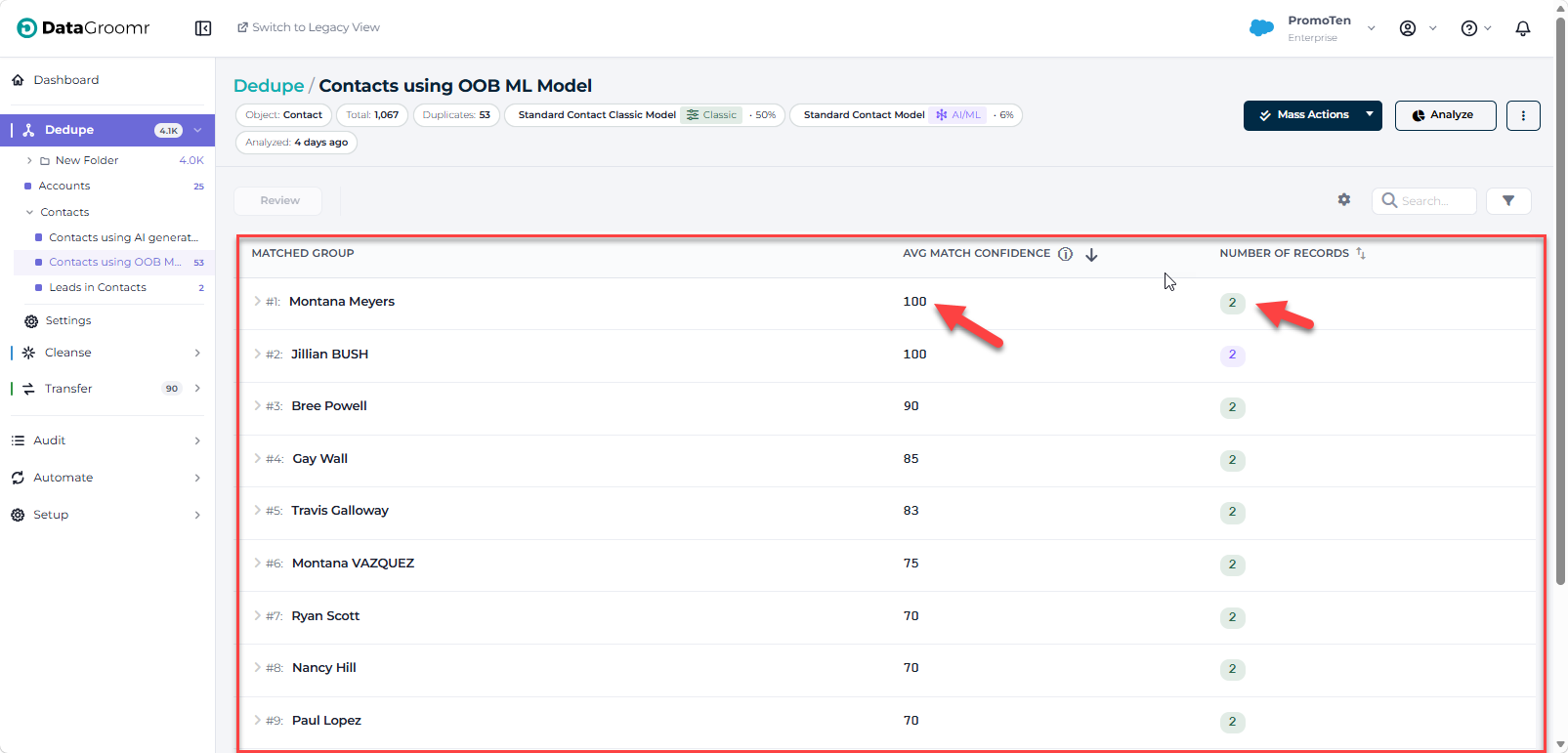
GOOD TO KNOW: The number of records in group is not limited and could be very large.
GOOD TO KNOW: If multiple matching models are used within the same dataset, the color of the Number of Records column indicates which model is used. Occasionally, a group may have multiple numbers which indicates that the duplicates in that group were identified using different matching models.
To see a preview of the records inside a group, click on the matching group row,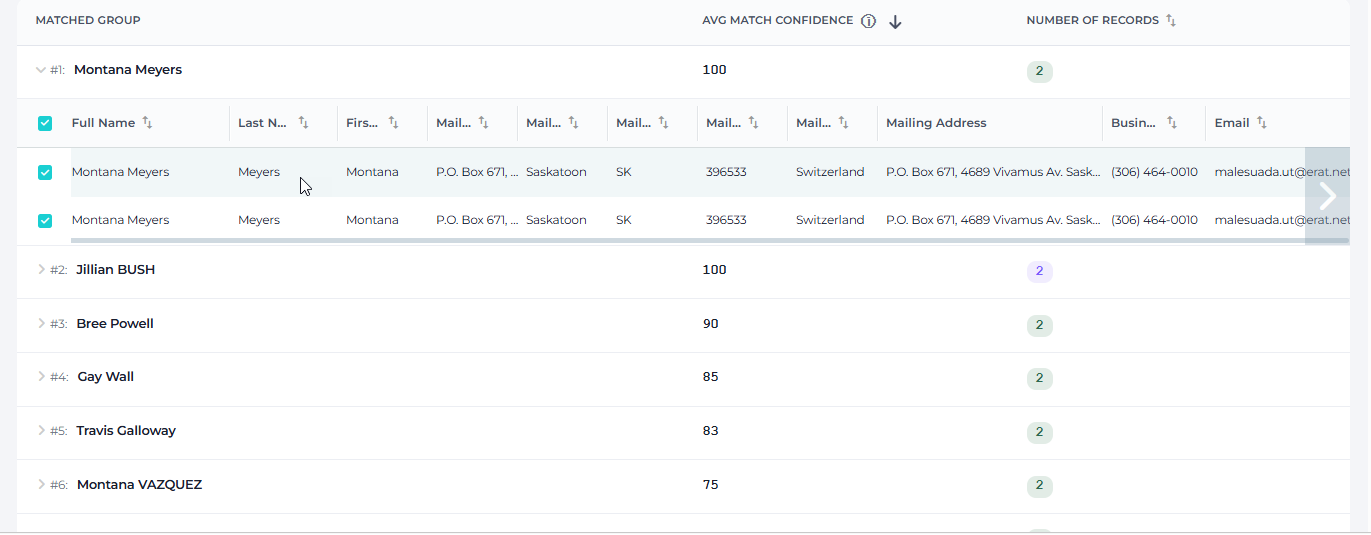
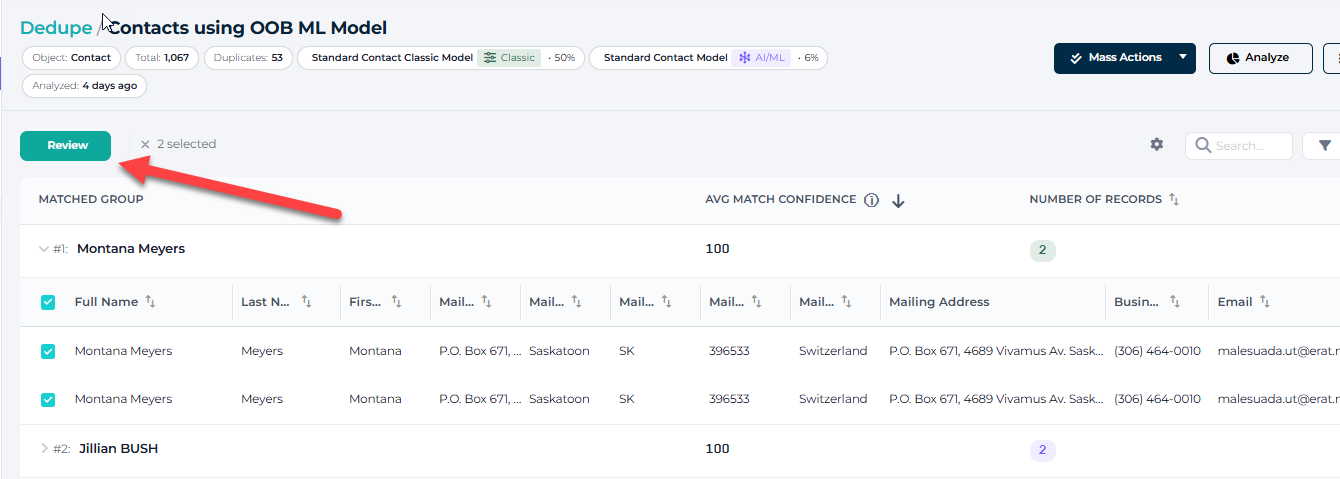
To start reviewing duplicates, open a group by clicking on the expand symbol (>) and press the REVIEW button. This will open a Review Dialogue window showing all the data inside the records in side-by side columns.
Tip: Change the Fields displayed in the Duplicate Group Review window
Related records
To see how many related records each record in the group has before you merge, open the display settings (cog) menu of the review dialog and switch on Show Related Records. It sits next to Show Empty Fields, Show Identical Fields, Show Verifications and Show AI Recommend, is off by default because it costs Salesforce queries, and the choice is remembered in your browser like the other switches. Turning it on for an open group loads the counts without closing the dialog.

When the switch is on, a Related records group appears after the field rows with one row per related list, for example # of Opportunities, # of Cases, # of Tasks (Who), and a final # of all related records row. The highest value in each row is shown in bold. Any count used by the dataset's master or field merge rule is always listed. Rows that are zero for every record are hidden unless Show Empty Fields is on.

Good to know: Counts are as of now. After the merge, related records are moved to the master, so its count becomes the sum. Counts are available for Salesforce datasets; for groups matched across objects only the parent-side counts are shown. If a count cannot be loaded, the row shows a dash with the Salesforce error in its tooltip.
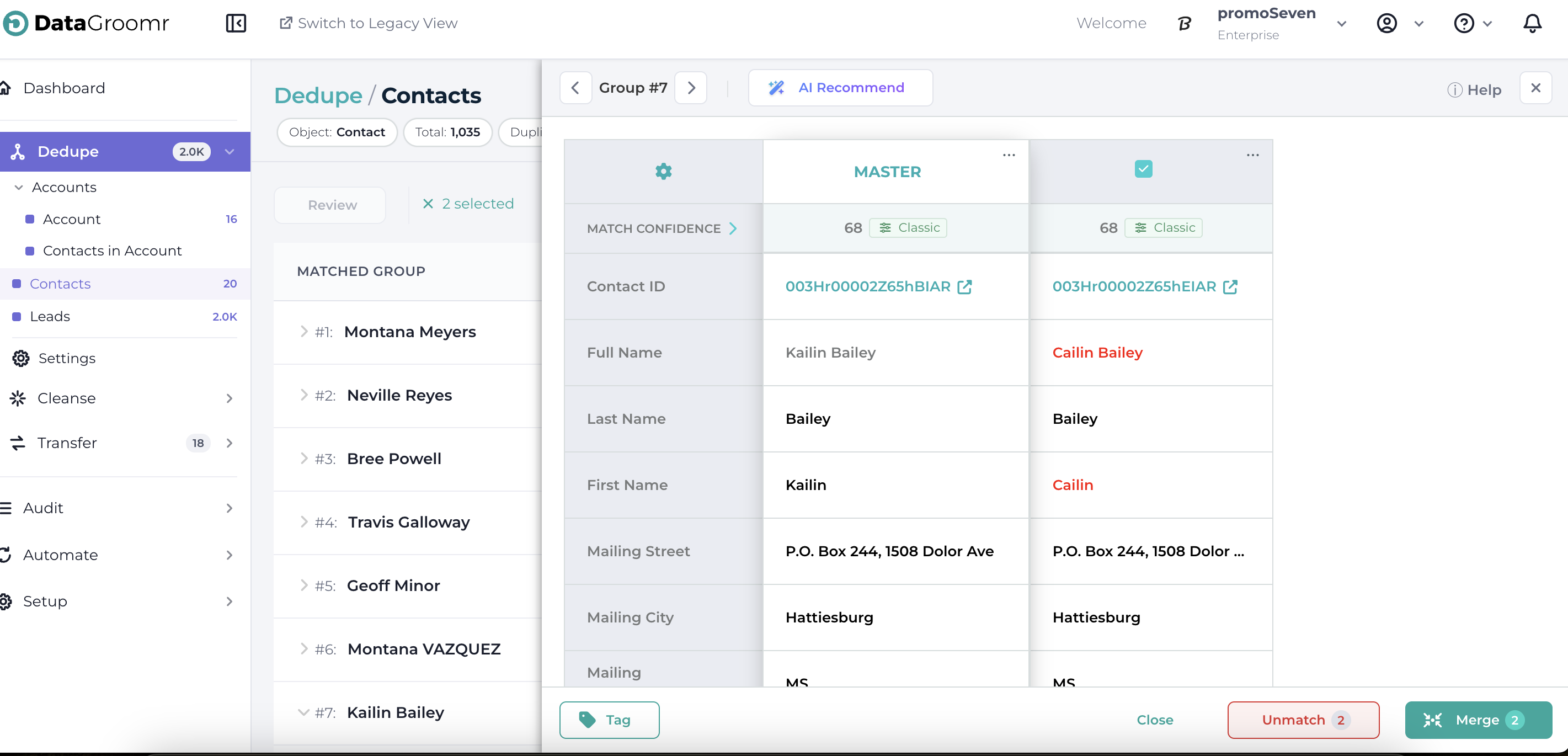
Master Record
The master record (the record that will remain in Salesforce after the merge) is shown on the left and any fields containing different values are highlighted in red. To replace the entire master record with one of the other duplicates, click on the MASTER label and select the appropriate radio button.
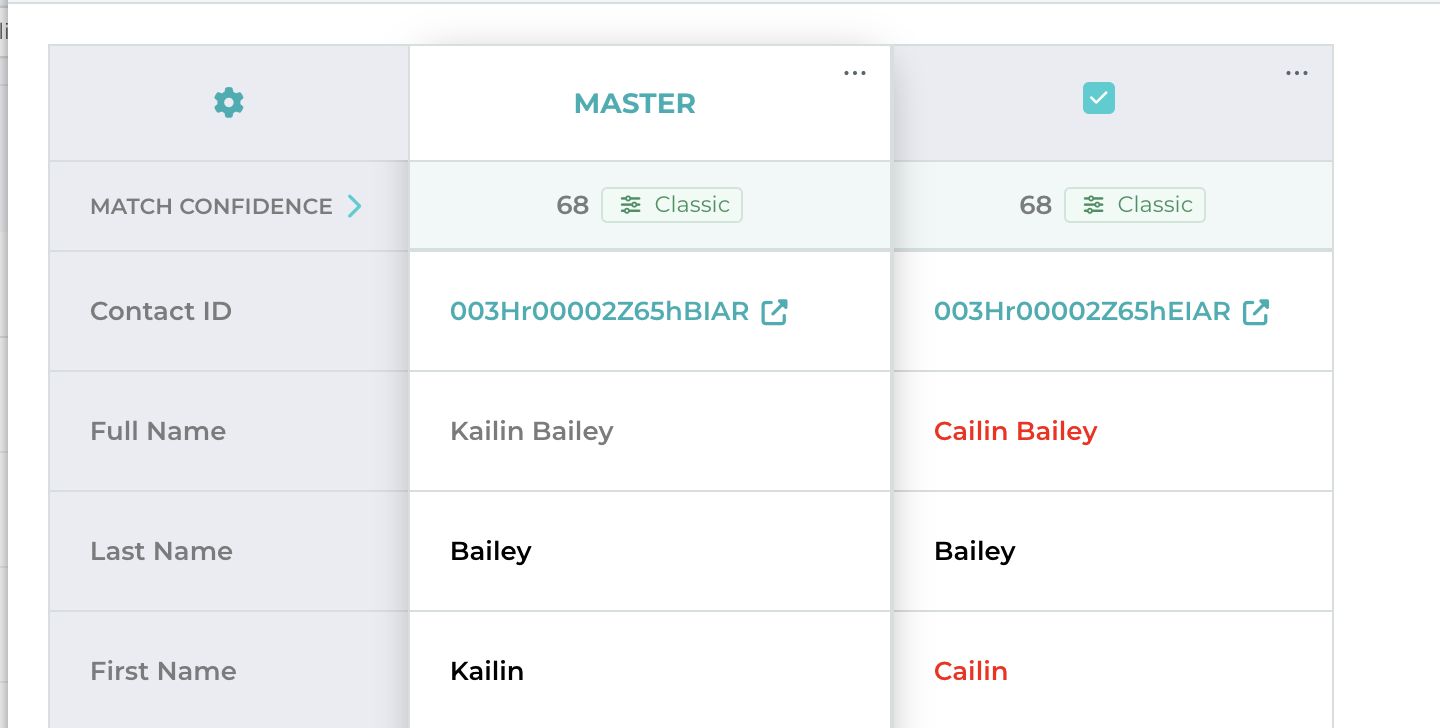
Override/Copy Data
If you want to replace the data in any master record field with one from another record, simply click the value in red. To reverse, just click on the value again.
See also:
What are Merge Rules?
Merge Rules: Creating Field Value
Merge Rules: Create Master Record Selection
Inline Editing
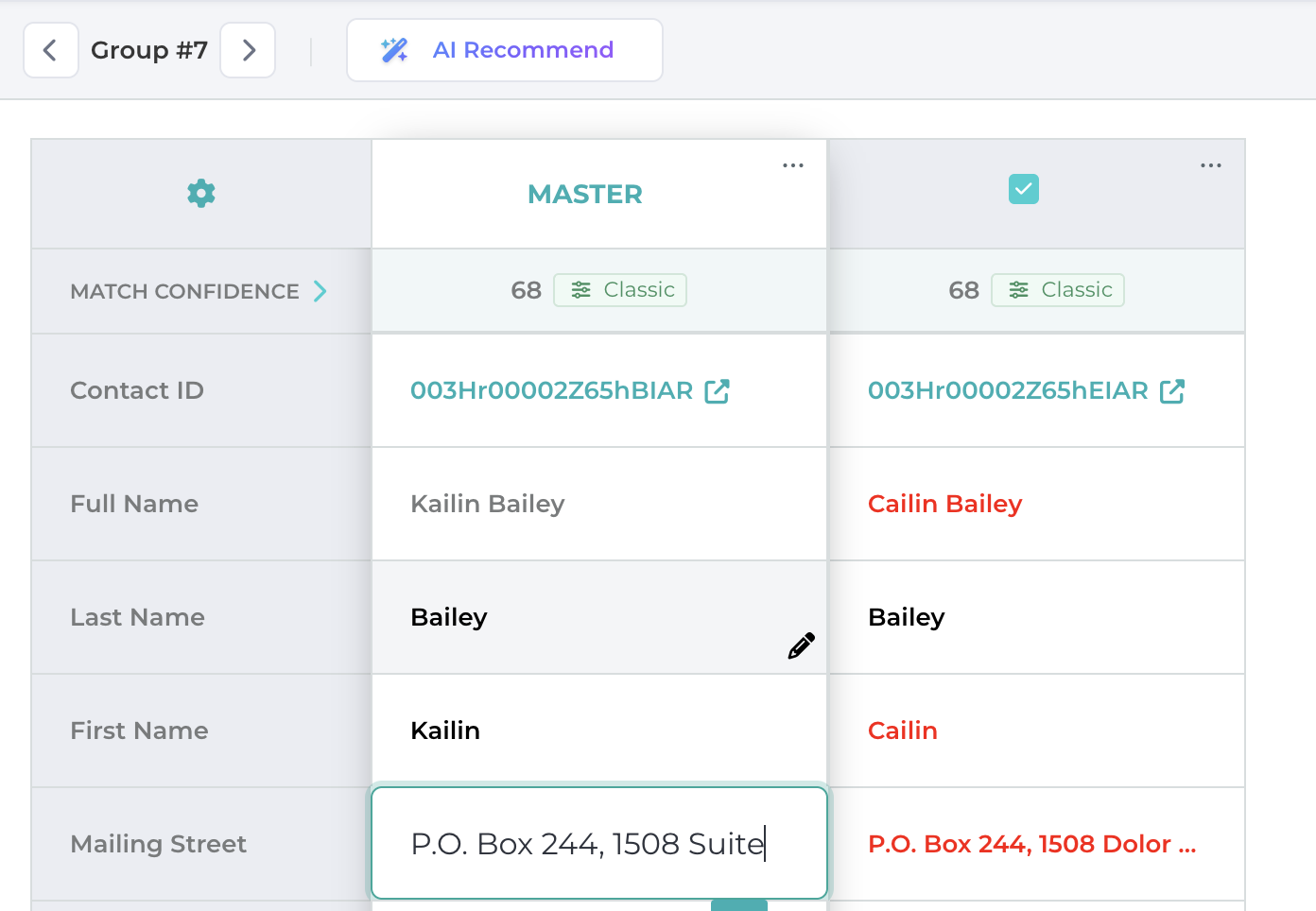
DataGroomr also supports inline editing to modify values directly inside the Master Record fields.
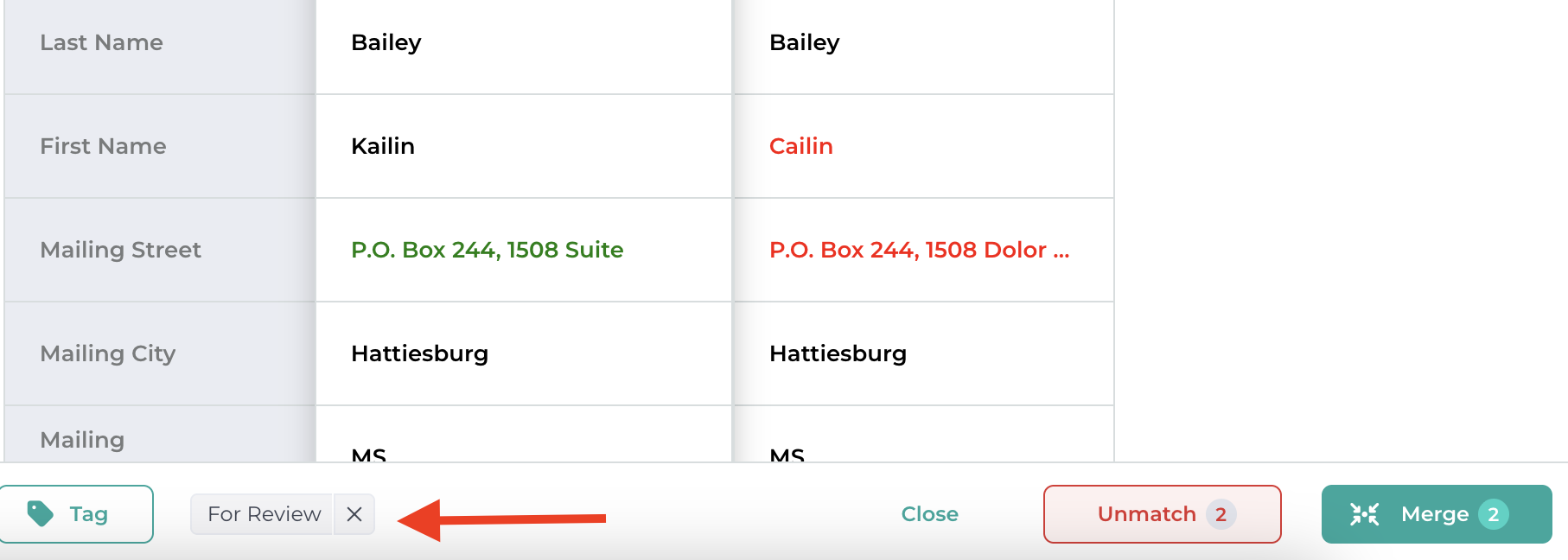
Group Actions
When you’re satisfied with your changes, click the MERGE button to remove the duplicates.
Good to Know: During the merge, any related records associated with the child records (e.g. opportunities, tasks, campaign history etc.) will be re-linked into the master record.
Occasionally you will decide that the records in a specific group should not be merged. To do this, press the red UNMATCH button to instruct DataGroomr to ungroup selected records and do not group them again in any future analysis.
Good to know: DataGroomr’s machine learning algorithm will use your MERGE/UNMATCH decisions to improve the identification of duplicates.
Press the Tag icon to assign tag(s) to a group that can be used to filter records in a dataset.
AI Assistant
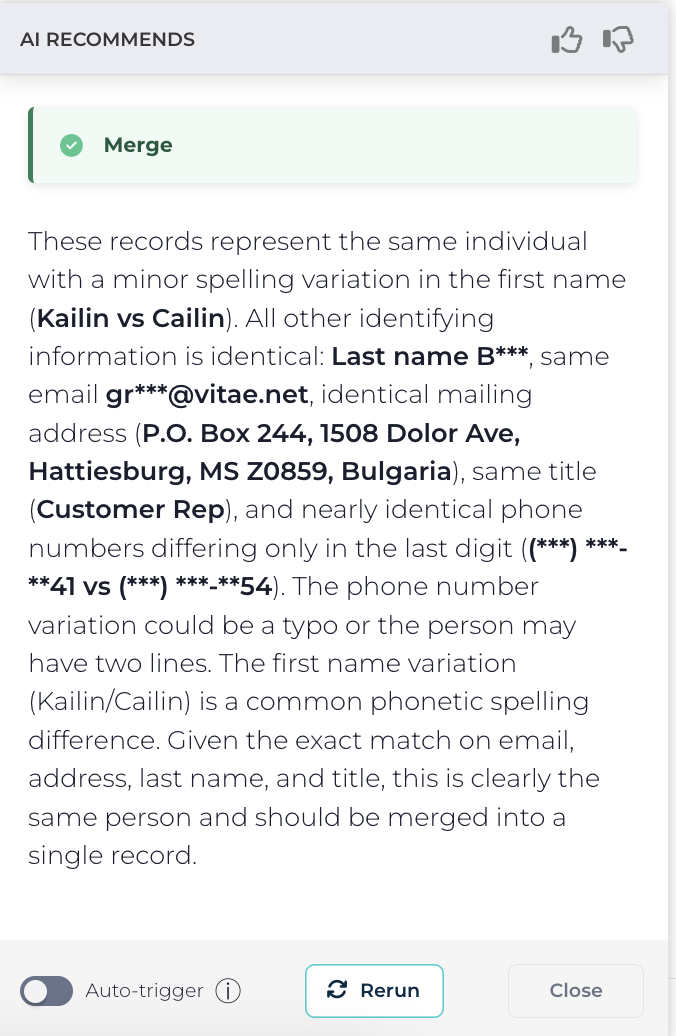
The DataGroomr AI Assistant can be accessed by clicking on the circular teal magic wand icon on the bottom right hand corner of the duplicate group review screen. The AI Assistant leverages advanced AI to contextually identify key differences between records, enabling you to make faster, more accurate decisions based on both visible similarities and subtle, previously unseen discrepancies. The AI Assistant feature can be disabled in Manage Subscription. In addition, AI can now recommend whether to merge, unmatch, link, or split a duplicate group automatically when the review dialog opens, or on demand with a single click.
Match Confidence Breakdown
You can view a detailed breakdown of the Match Confidence score to understand how DataGroomr evaluated the records as potential duplicates. To see the top three contributing fields, hover over the confidence value in review pane. The breakdown can also be accessed by clicking the expand arrow present on Match Confidence tile.
For a more detailed view, click See Full Calculation which will open a side panel that lists how each field contributes to the final confidence score. The detail panel also includes information about any pre-processing applied to fields.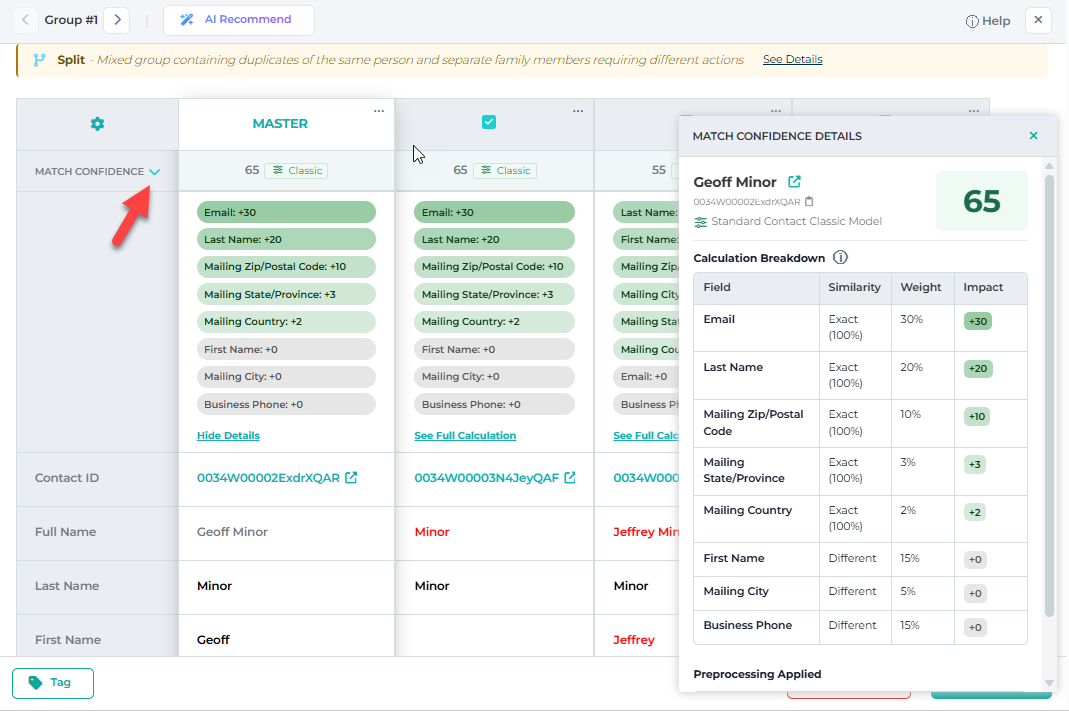
Learn more: Tag groups
Data Verification
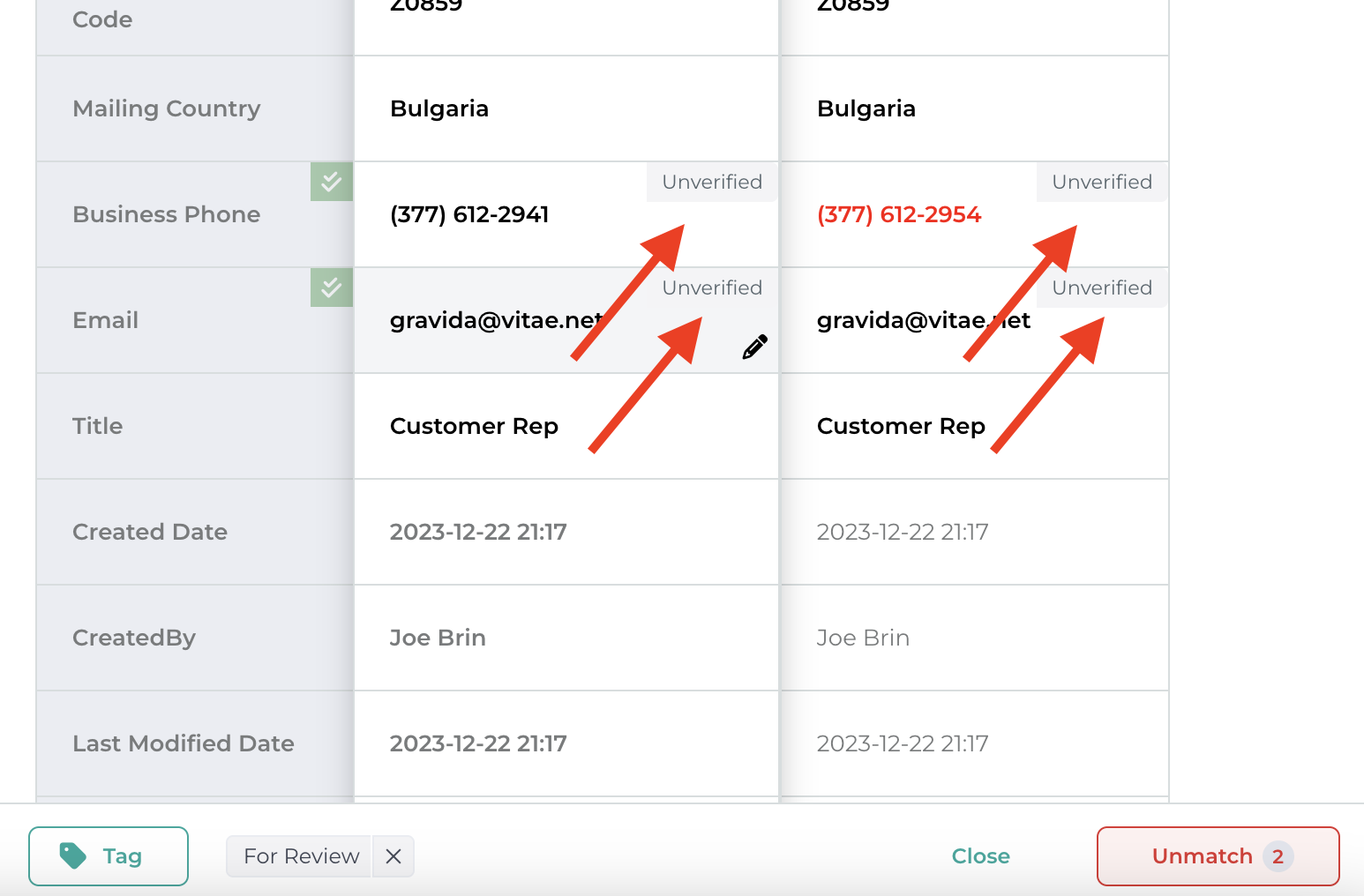
You may also verify phone, email or street addresses using the verify feature (requires Credits - see Manage Credits). You may verify the entire row or data within an individual cell by clicking on the label.
Record actions
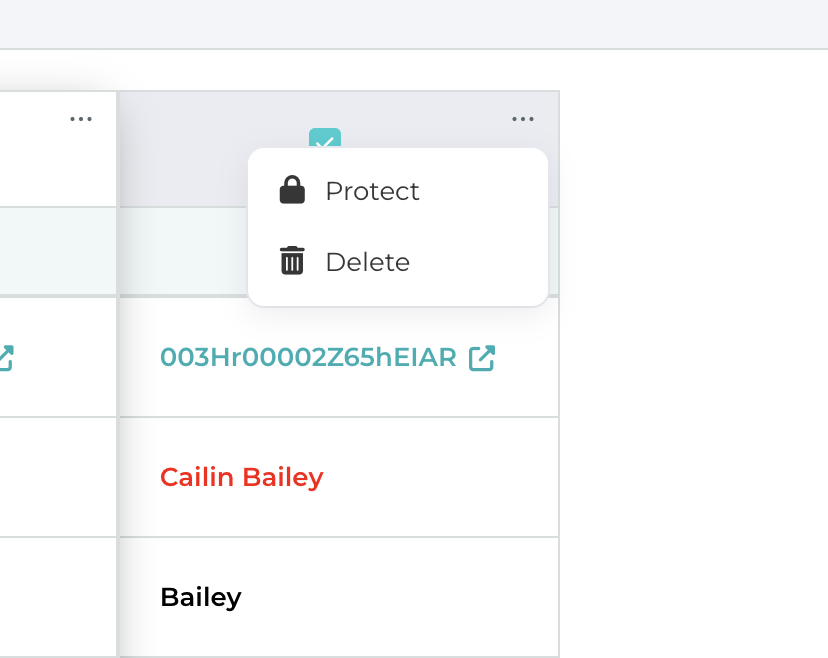
You may also wish to prevent a Salesforce record from being modified or deleted. To do this, select 'PROTECT' from the options on the menu for that record.
In some cases, a record should be removed from Salesforce all together. To do this, select 'DELETE' from the same menu.