
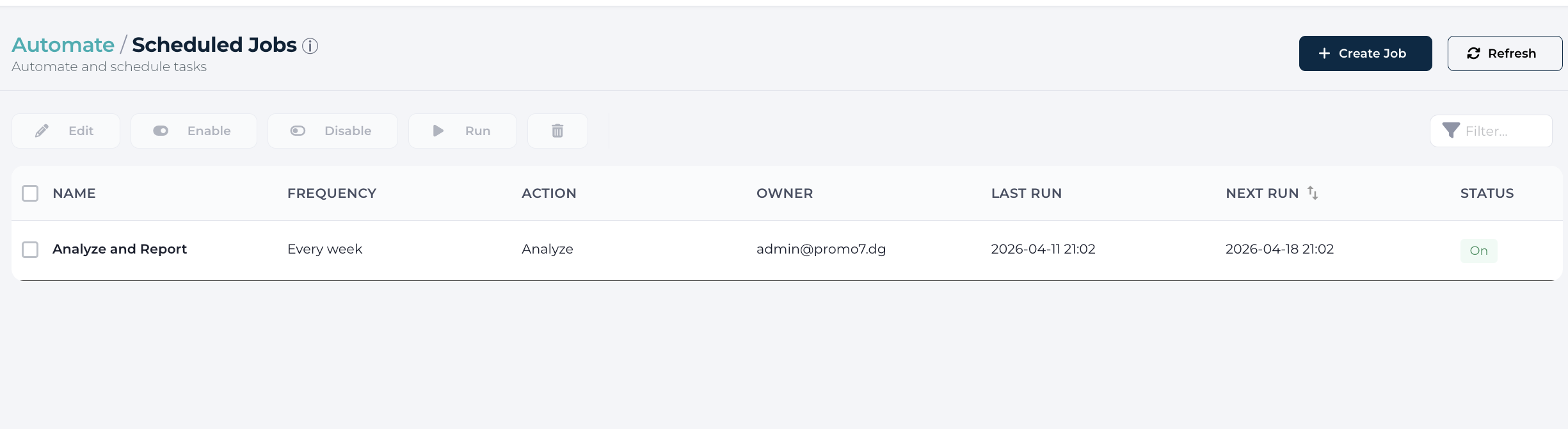
DataGroomr’s task management module, Automate gives users the ability to automate certain tasks. From the Automate dashboard, you can:
- Add a new job (see below)
- Run a job on-demand - Select a job from a list and press Run button to start
- Edit a job - Select a job from a list and press Edit button to open editing window
- Delete a job - Select a job from a list and press Delete (trash) button
- Enable/Disable a job - A job can be activated/deactivated by selecting it from a list and pressing the Enable and Disable button.
Adding Jobs
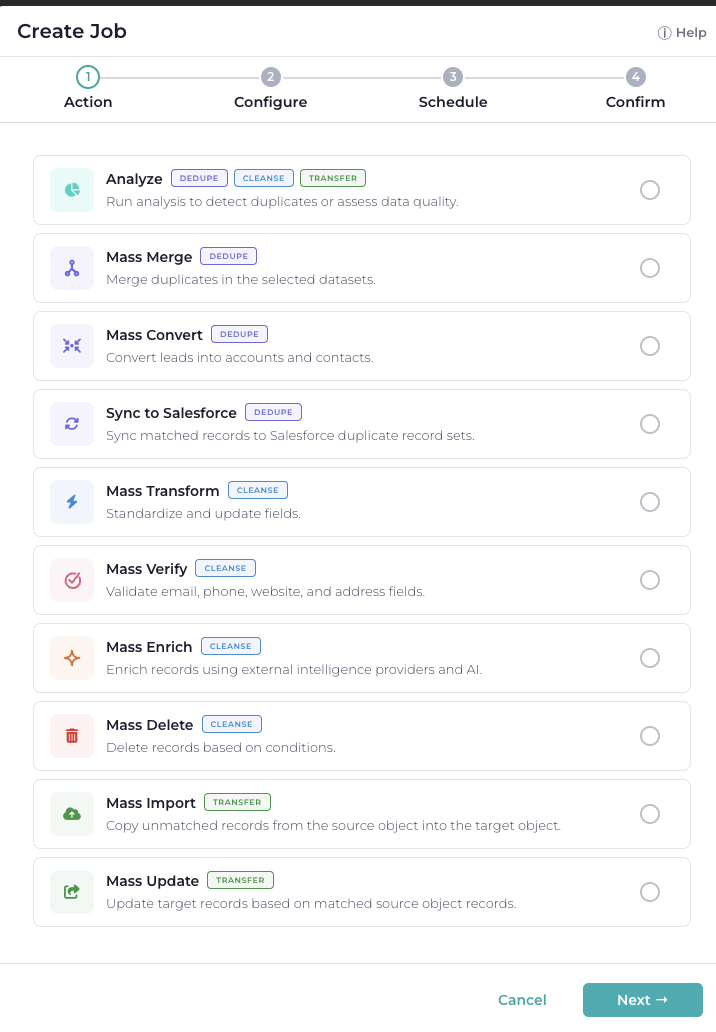
Automate support multiple types of jobs that can be fully automated, that includes
- Analyze - analyze data for duplicates and data quality
- Mass Merge - mass merge duplicates
- Mass Convert - mass convert leads to contacts or accounts
- Sync To Salesforce - synchronize duplicates with Salesforce
- Mass Transform - mass standardize, normalize or update data
- Mass Verify - mass verify records in Cleanse dataset
- Mass Enrich - enrich records using external intelligence providers and AI
- Mass Delete - mass delete records
- Mass Import - mass import records from Importr dataset
- Mass Update - update target records based on matched source object records
To create a new job, press the Create JOB button. You will be prompted through a 4-screen wizard.
1) In the first window, select the type of job in the Action field.
2) The second window will prompt you to configure the dataset that you would like the job to run against, a Match Confidence or the records that have an associated Tag to run the job against.
You can also:
Filter by Matched on field to narrow results to groups matched based on specific fields.
Filter by the Matched by which matched the records together, if the dataset is set up with multiple matching models.
Filter by Group size to target duplicate groups of a particular size (e.g., only groups of 2 records, or 10+ records). This allows you to focus on more manageable sets.
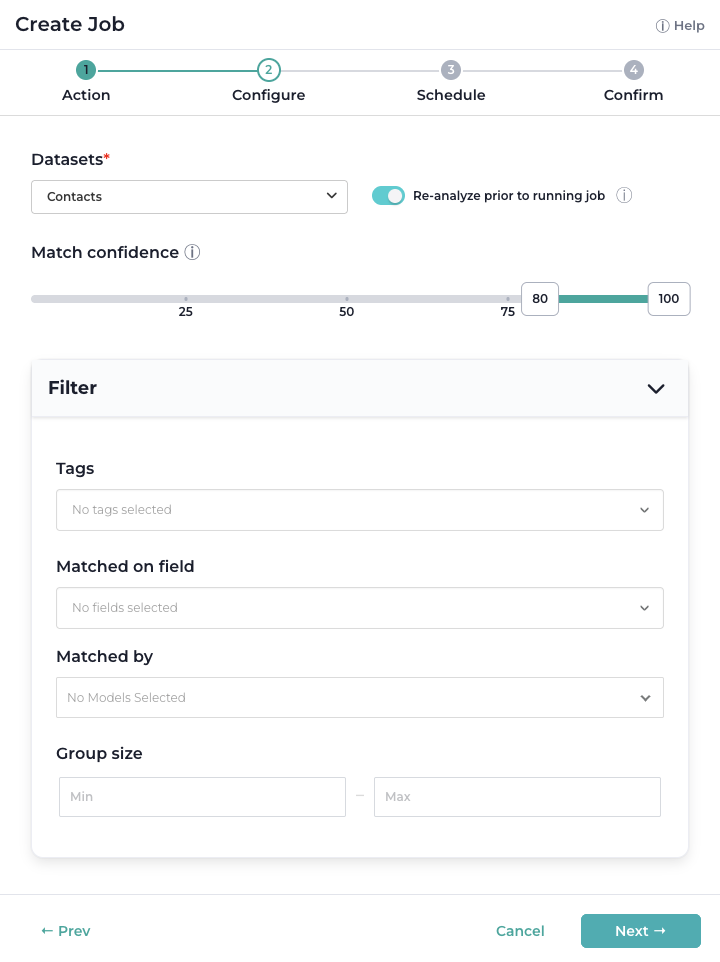
For the Cleanse datasets, you'll be able to select Validity score range or any other Data Quality Models range associated with a dataset.
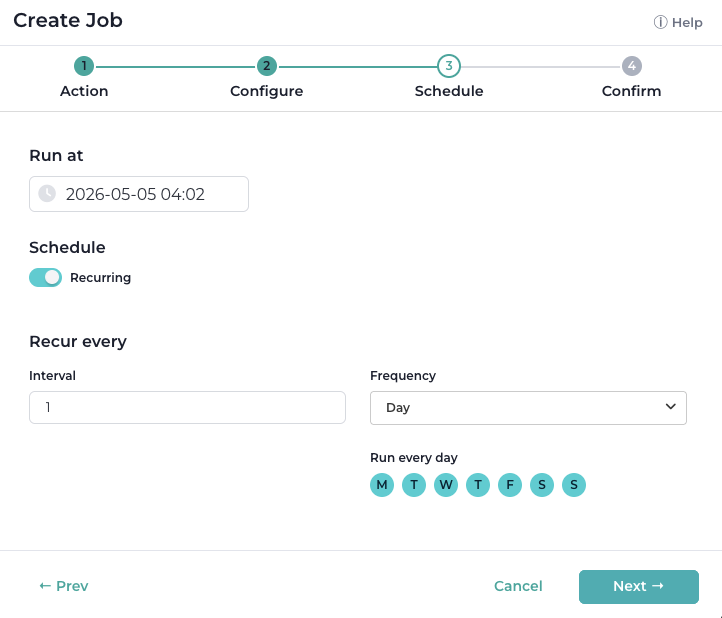
3) The third window is used to schedule the job and if you wish the job to recur, an interval can be added.
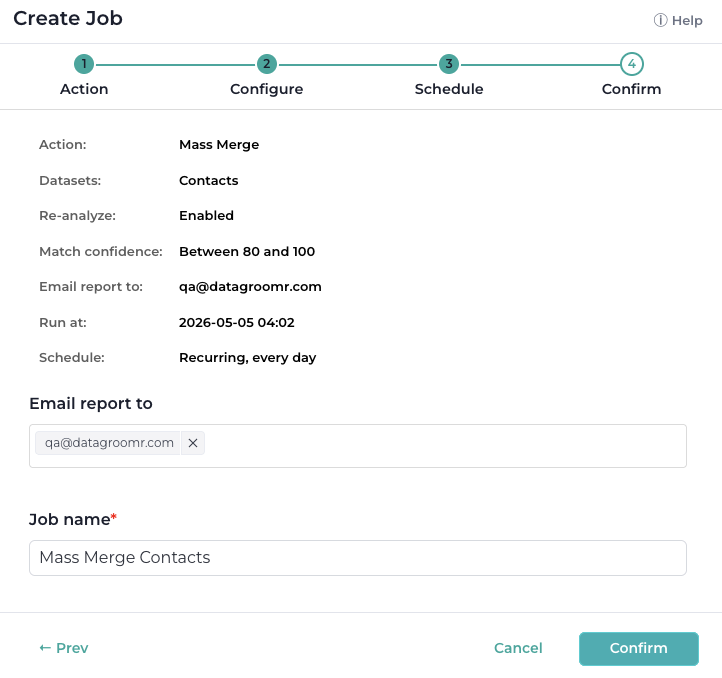
4) The final window is a confirmation screen where you can review your settings and job's name. You can also add or remove email addresses to send the report to.
Initiate Automate Jobs via API
Automate Jobs can also be initiated via API callouts, enabling them to trigger scheduled jobs through automation.
Read more about DataGroomr APIs