
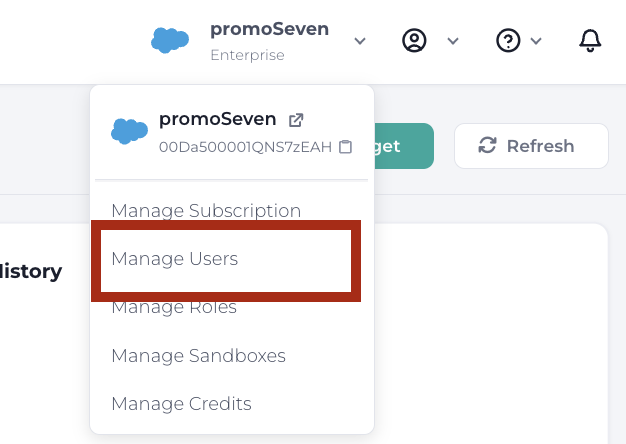
The Managing Users option can be accessed using the dropdown arrow in the Org section (top status bar).
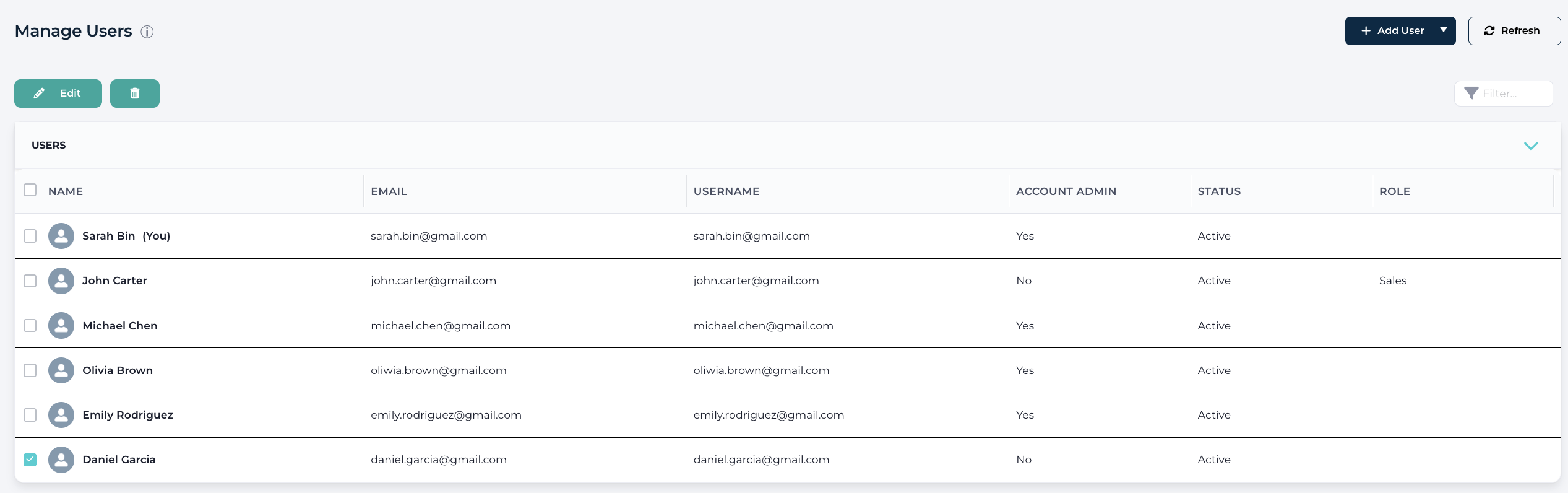
Selecting this option will bring up a screen containing a list of users. You may add or remove users using the controls in this screen.
To Add a User, press the Add User button. This will bring up the Add User dialogue window.
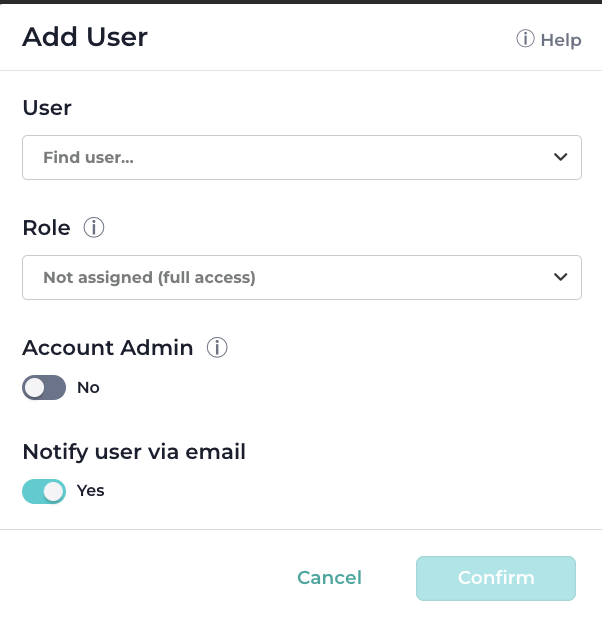
From here you can find and select any Salesforce user in your organization using the drop-down control.
Note: Enterprise subscription users can be assigned a role. Learn more about Roles here.

Enable the Account admin option to allow user to manage subscription, users, roles, sandboxes and credits.
Enable the Notify user via email option to send them an invite email.
Press Confirm to continue.
Adding Merge Enabled Users
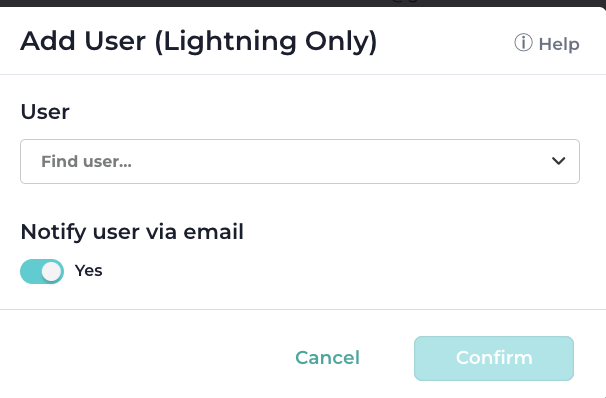
In order to grant users permissions to merge records using DataGroomr Duplicates component, select Add User (Lightning Only) option, this will bring up Add User (Lightning Only) dialogue.
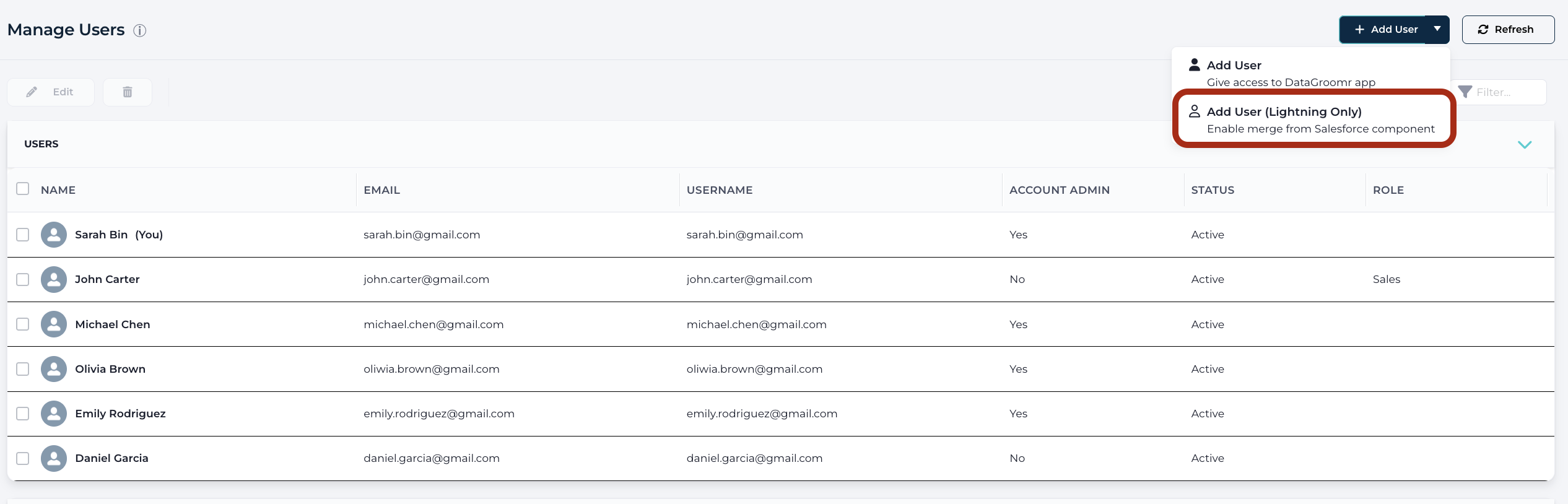
From here you can find and select any Salesforce user in your organization using the drop-down control. Press Confirm to continue.
Deleting a User
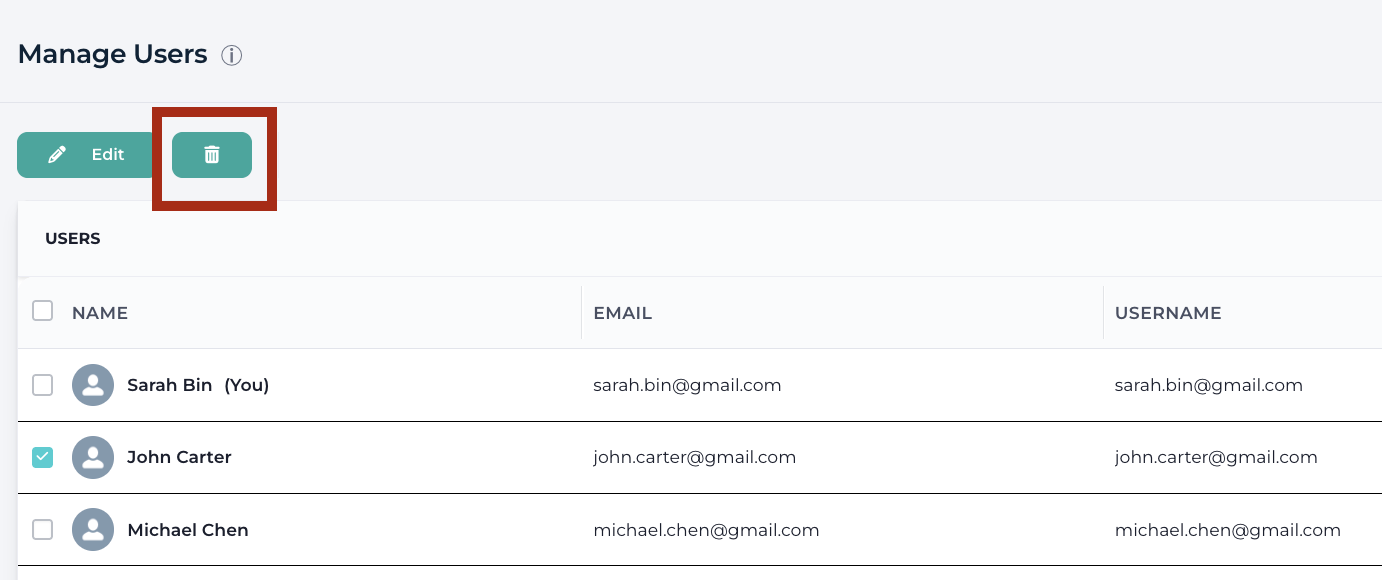
To delete a user, locate the user in the list and select the checkbox next to their name. Multiple users can be selected at once using the checkboxes. After selecting the desired users, click the Delete button to remove them.
Note: Background automation (scheduled jobs, workflows, and real-time triggers) runs under the credentials of the user who created it. When that user is deactivated in DataGroomr, their background jobs no longer run — the affected schedule or trigger is automatically disabled and account administrators are notified by email. Reassign or recreate the automation under an active user to resume it.