
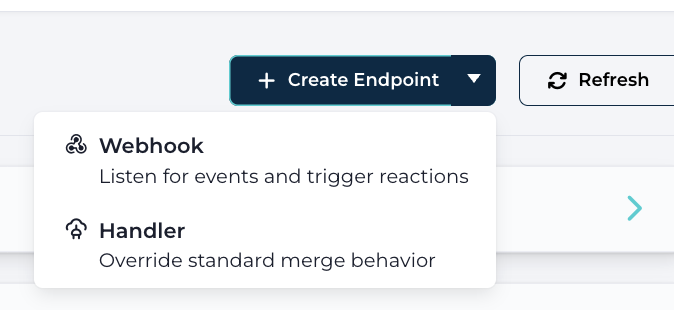
Start by click on the Add Webhook button, this will bring up an Add Webhook dialog.
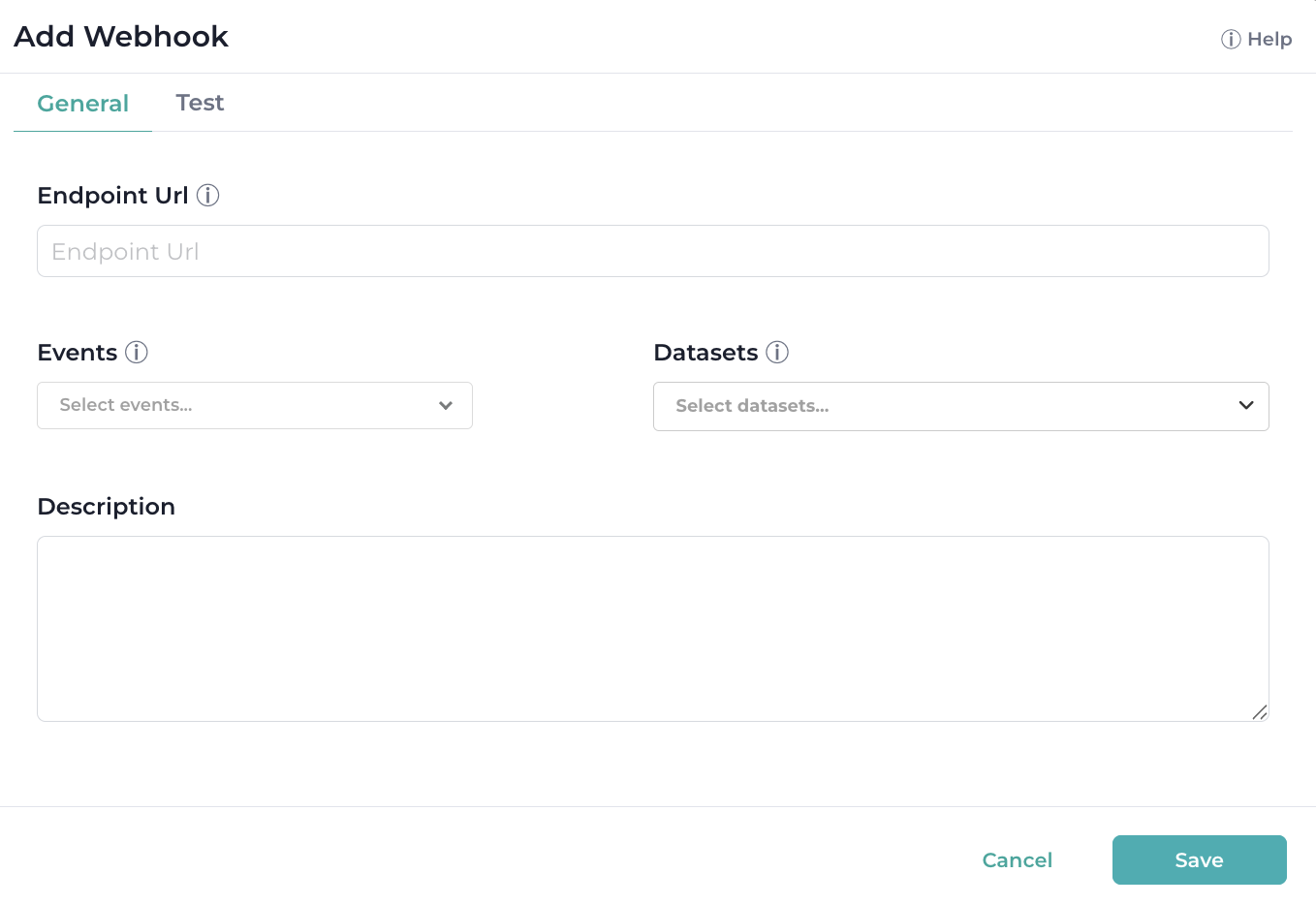
Specify the following values:
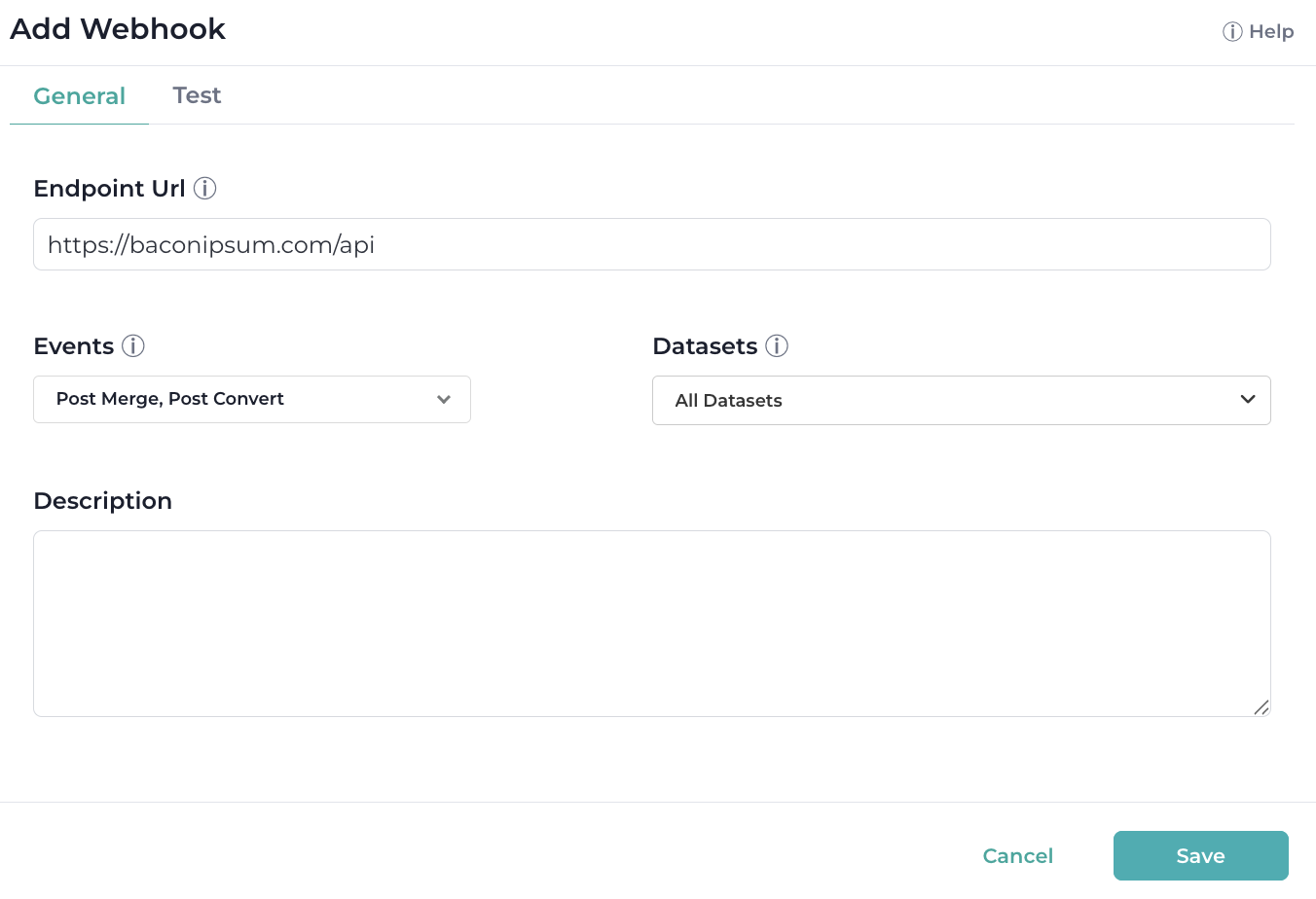
- Endpoint URL in the form of the absolute URI, for example https://baconipsum.com/api
- Select events which should trigger integration
- Post Merge
- Post Convert
- Select all or specific datasets which should trigger integration
- Optionally, specify webhook description
Handle the event
DataGroomr sends the event data in the request body in JSON format. Each event is structured as an object with a type, context, request and response. In addition, DataGroomr includes the following request headers,
- X-DataGroomr-Signature - signature generated by DataGroomr based on event body (Read more about verifying signature Check Event Signature)
- X-DataGroomr-CorrelationId - unique event Correlation Id
As soon as you have the event object, check the type to know what kind of event happened. The following event types are available,
- PostMerge - occurs after records are merged,
- PostConvert - occurs after Lead record is converted.
Event format
All Post-events are sent in the JSON format and include the following fields
- type (string) - Type of the event, Available values: PostMerge, PostConvert.
- context (object) - Execution context, contains the following fields
- triggeredBy - user name of a user who triggered event
- triggeredByJob - job name (from Schedulr) which triggered event
- request (array) - An array of objects representing requests sent to Salesforce
- response (array) - An array of objects representing responses received from Salesforce
Post Merge event format
- request (array) - Salesforce merge requests (see MergeRequest object)
- response (array) - An array of Salesforce merge results (see MergeResult object)
Example event is shown below
{
  "type": "PostMerge",
  "request": [
    {
      "masterRecord": {
        "type": "Lead",
        "Id": "00Q4W00001SPf7yUAD"
      },
      "recordToMergeIds": [
        "00Q4W00001SPf7zUAD"
      ]
    }
  ],
  "response": [
    {
      "id": "00Q4W00001SPf7yUAD",
      "mergedRecordIds": [
        "00Q4W00001SPf7zUAD"
      ],
      "updatedRelatedIds": [
        "00Q4W00001SPf7zUAD"
      ],
      "success": true
    }
  ],
  "context": {
    "triggeredBy": "user@test.com",
    "triggeredByJob": ""
  }
}
Post Convert event format
- request (array) - Salesforce Lead convert requests (see LeadConvert object)
- response (array) - An array of Salesforce Lead convert results (see LeadConvertResult object)
Example event is shown below
{
  "type": "PostConvert",
  "request": [
    {
      "accountId": "0014W00002JGJaWQAX",
      "contactId": "0034W00002Q8GITQA3",
      "leadId": "00Q4W00001SPf5cUAD",
      "ownerId": "0054W00000AeTXzQAN",
      "convertedStatus": "Closed - Converted",
      "doNotCreateOpportunity": true
    }
  ],
  "response": [
    {
      "accountId": "0014W00002JGJaWQAX",
      "contactId": "0034W00002Q8GITQA3",
      "leadId": "00Q4W00001SPf5cUAD",
      "opportunityId": null,
      "success": true
    }
  ],
  "context": {
    "triggeredBy": "user@test.com",
    "triggeredByJob": ""
  }
}
Test your endpoint
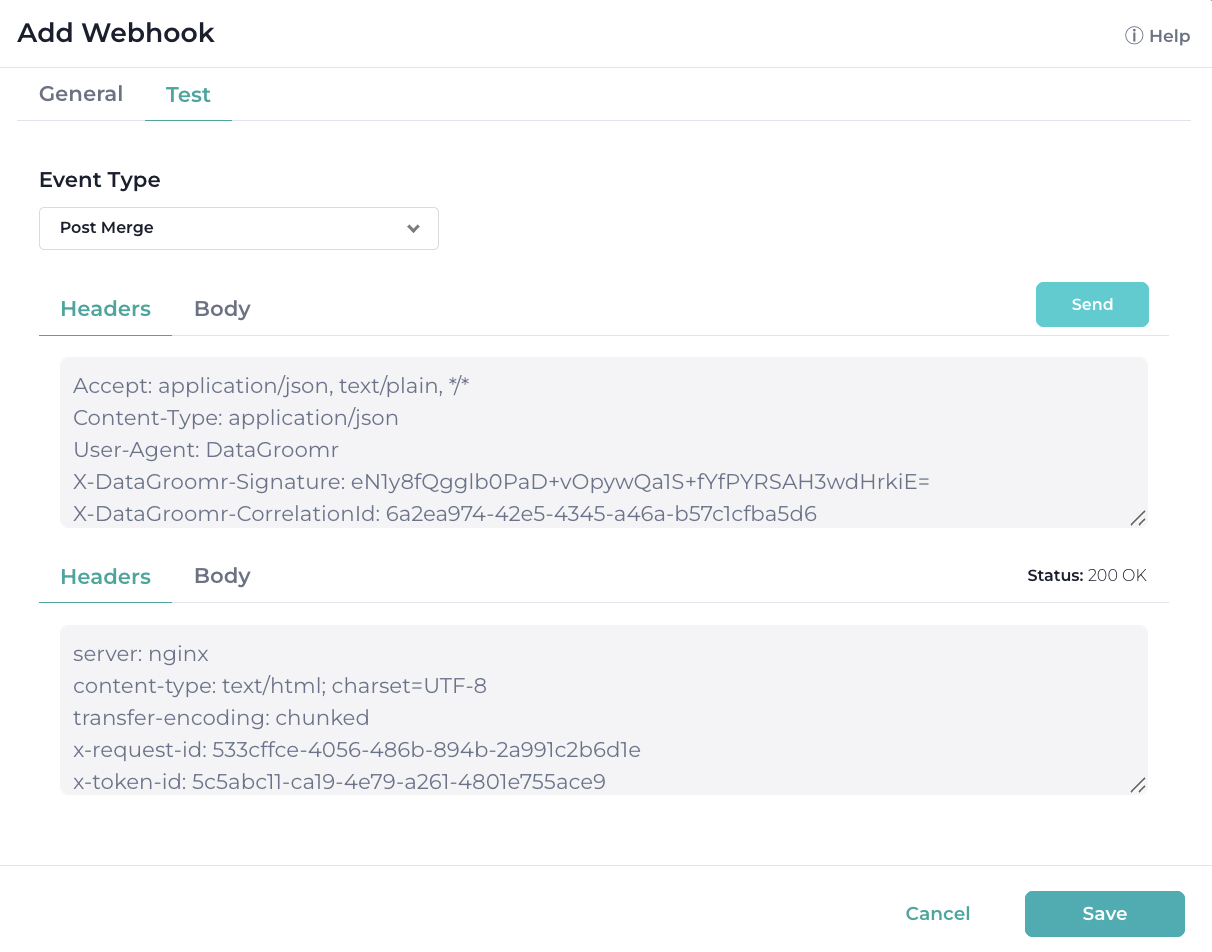
Before you rely on the integration, send a test event. Open the Test tab on the Add Webhook dialog, choose an event in the Event Type dropdown and click Send. The request headers and body appear at the top, and the response headers and body from your endpoint appear below.
Next steps: