
The Rule Designer is a powerful declarative utility used to create custom logic within DataGroomr using clicks, not code. The Rule Designer is accompanied by the Rules: Rule Preview Section and the Rules: Detail Editor to showcase the function of the rule being build on a live basis.
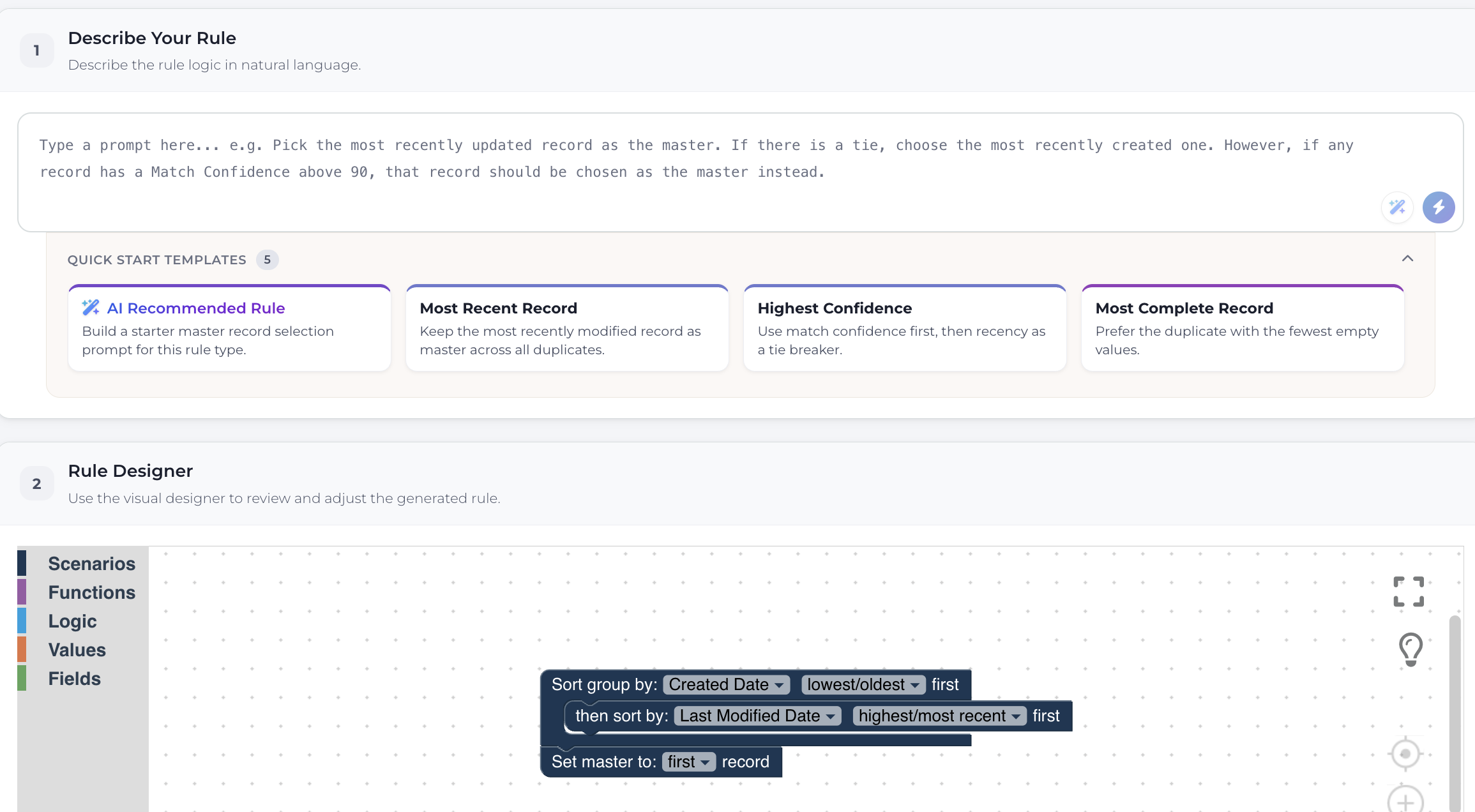
The Rule Designer shares the same layout, colors, and styles as the Enrichment editor, so building rules feels familiar across DataGroomr. The layout combines a chat-like Describe your rule area, quick start templates, the visual design canvas, a live preview table, and a side table listing the available fields and compatible objects.
Quick Start Templates
When you open the Rule Designer, quick start templates let you begin creating rules without starting from a blank canvas. The first template, shown in a gradient color, is an AI-recommended rule prompt generator that builds a suggested rule for your data. Selecting any template loads its blocks onto the canvas, where they can be adjusted as needed.
The tabs on the left side contain components that can be dragged to the work area, connected and configured in order to construct a completed rule.
- Blocks in a rule are executed sequentially from top to bottom
- The valid top-level blocks in a rule are "for [____] fields", "for [____] records" and "distribute values";
- Multiple loops can be included in each rule and multiple blocks can be nested in each loop;
- Many blocks include drop down fields that will contain all available options. For components with field names, the drop-down list will include all the fields listed in the Available Fields area.
- Functions and logic are specific to the rule type being designed
AI Prompt Validation
When using AI to generate rules, the system validates prompts and returns specific error messages if the prompt is unclear or incomplete. The AI will ask clarifying questions to help narrow down your intent and may provide suggestions to guide you in refining your request for better results.
Right Click
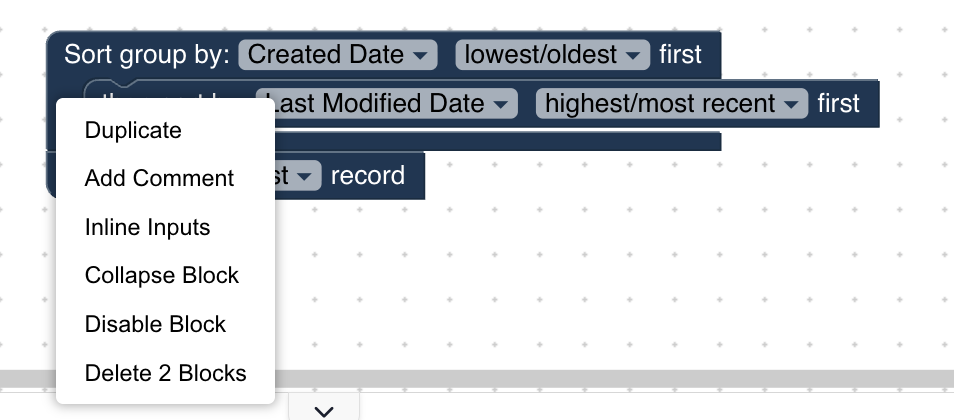
Right button click will bring up additional context menus to quickly duplicate, remove, collapse/expand, add/remove comment, delete or disable blocks.
Backspace/Delete Key
Remove the currently selected block as denoted by the yellow outline
Dragging and Dropping
Drag and drop blocks into the correct execution order. Blocks can be dragged back into the grey selection area if the currently selected block is to be removed.