
Sometimes the records you want to merge won’t appear inside a Matched Group (i.e., they were not identified as duplicates). You can still merge them manually from the All Records list in your dataset results.
Before you begin
Make sure your dataset run has completed and results are available.
You should know which records you want to merge (or be able to search for them).
Step-by-step: Merge records not identified as duplicates
Open your dataset results
Go to your dataset and open the Results view.
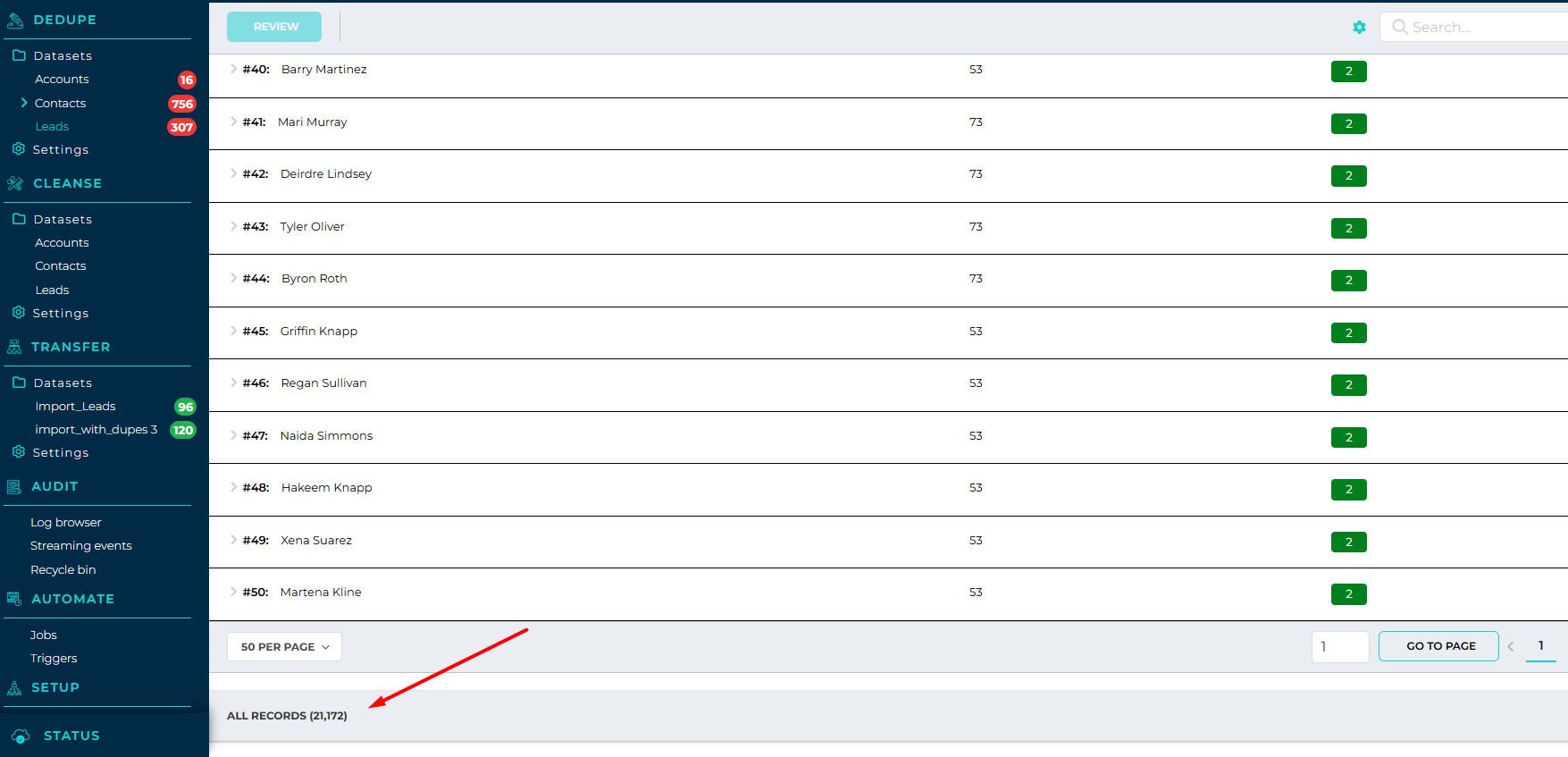
Scroll to the “All Records” section
This is located below the Matched Groups section.
The All Records list includes every record in the dataset—matched or unmatched.
Find the records you want to merge
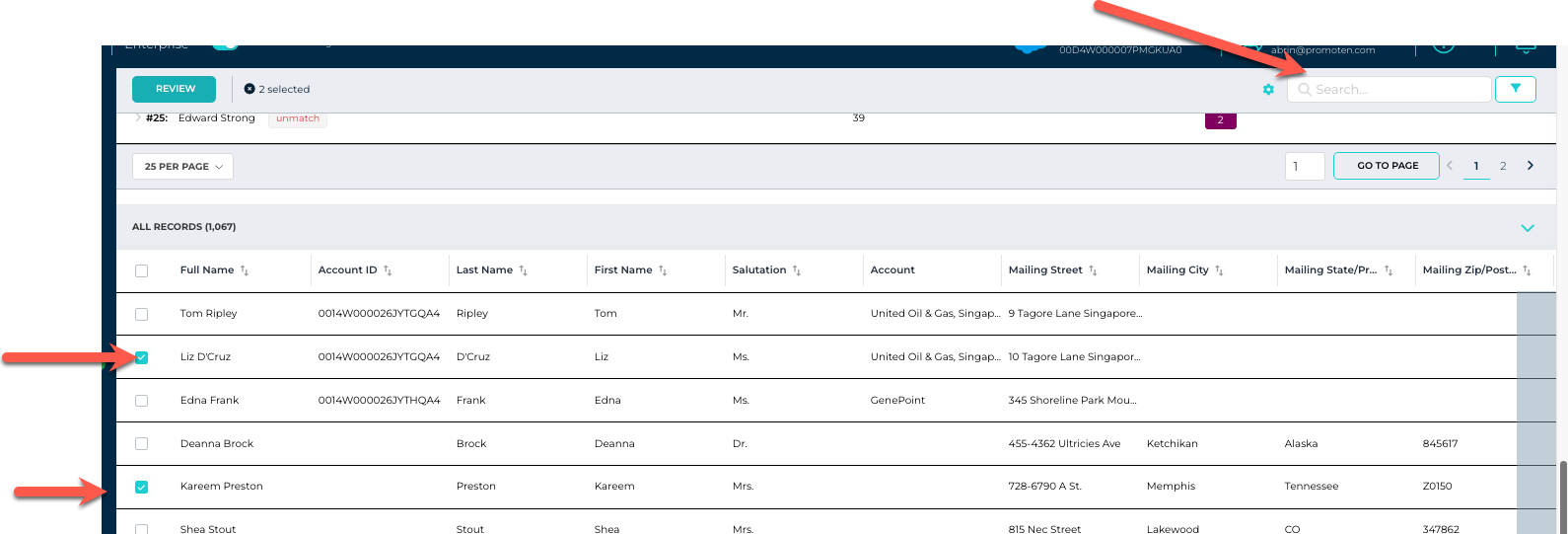
Use the search field to locate a record by name, email, ID, or other identifying field.
Repeat the search as needed to find the additional records you want to include.
Select the records
Check the box next to each record you want to merge.
Click
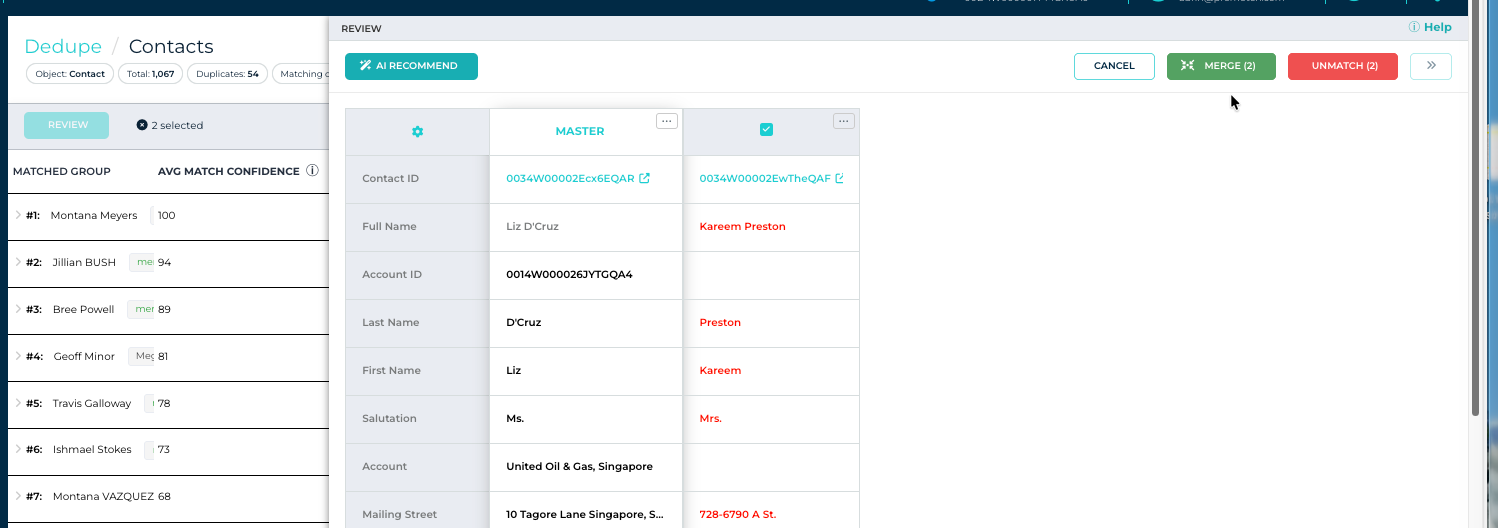
ReviewClick Review to open a side-by-side comparison of the selected records.
Confirm that these records should be merged and verify the field values you want to keep.
Click
MergeWhen you’re ready, click Merge to combine the selected records into a single record.
Tips & best practices
Select carefully: Only merge records that clearly represent the same person/company.
Use Review to confirm field choices: Double-check key fields like email, phone, account owner, and status.
Use AI recommend feature as necessary
Start with two records: If you’re unsure, merge two first, then merge the result with additional records if needed.